

The Bright Data Scraper Studio dashboard is where every production scraper lives. Use it to inspect scraper properties, trigger runs, configure delivery, manage versions, and review collection statistics. This page is a reference for every control you see on the My Scrapers page and the statistics drill-down.Documentation Index
Fetch the complete documentation index at: https://docs.brightdata.com/llms.txt
Use this file to discover all available pages before exploring further.
The Scrapers dashboard
Every scraper you create in Bright Data Scraper Studio, whether generated by the AI Agent, built from a template, or written from scratch, appears under My Scrapers on the Scrapers dashboard.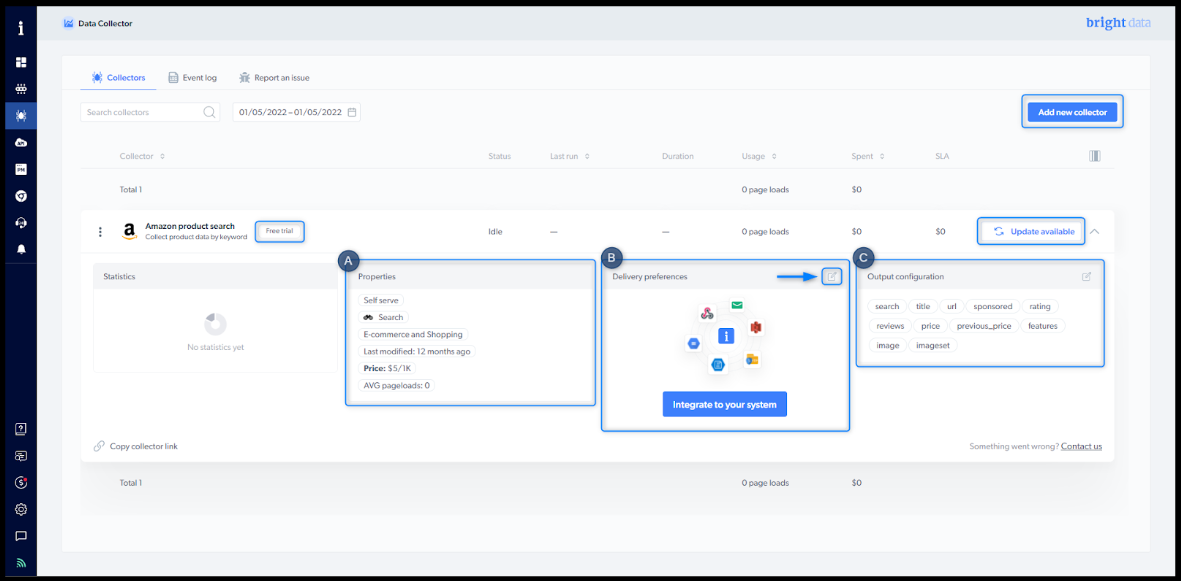
What the dashboard shows
| Control | Description |
|---|---|
| Free trial | The 7-day free trial includes 1,000 page loads |
| Update available | A new scraper version is published. If the Update button is hidden, you are on the latest version |
| Delivery preferences | Choose file format, delivery destination, and notification settings. See Initiate collection and delivery |
| Parallel job limit | Bright Data Scraper Studio runs up to 1,000 batch jobs in parallel. Extra jobs queue automatically. See Specifications |
What does each scraper action menu option do?
Every scraper has a three-dots action menu that exposes the following commands.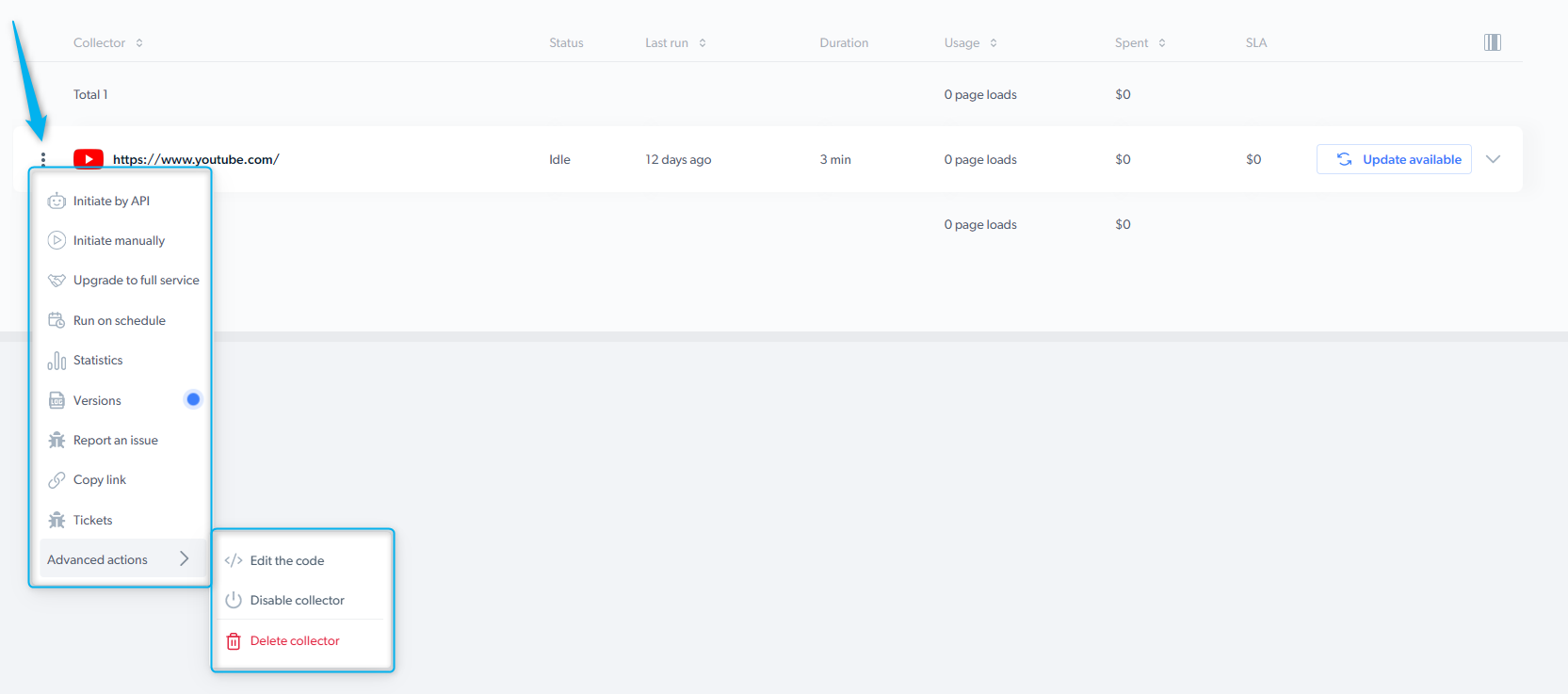
| Action | Description |
|---|---|
| Initiate by API | Trigger a collection through the REST API without opening the control panel |
| Initiate manually | Trigger a collection from the control panel |
| Run on schedule | Configure a recurring run: hourly, daily, weekly, or custom |
| Versions | Review and roll back to an earlier saved version of the scraper |
| Report an issue | Submit a platform, scraper, or data quality ticket |
| Copy link | Copy a shareable URL for the scraper |
| Tickets | View existing support tickets for this scraper |
| Edit the code | Open the scraper in the Bright Data Scraper Studio IDE |
| Disable scraper | Temporarily deactivate the scraper; can be reactivated later |
| Delete scraper | Permanently delete the scraper |
What properties does each scraper expose?
Every scraper carries metadata that helps you identify it at a glance on the dashboard.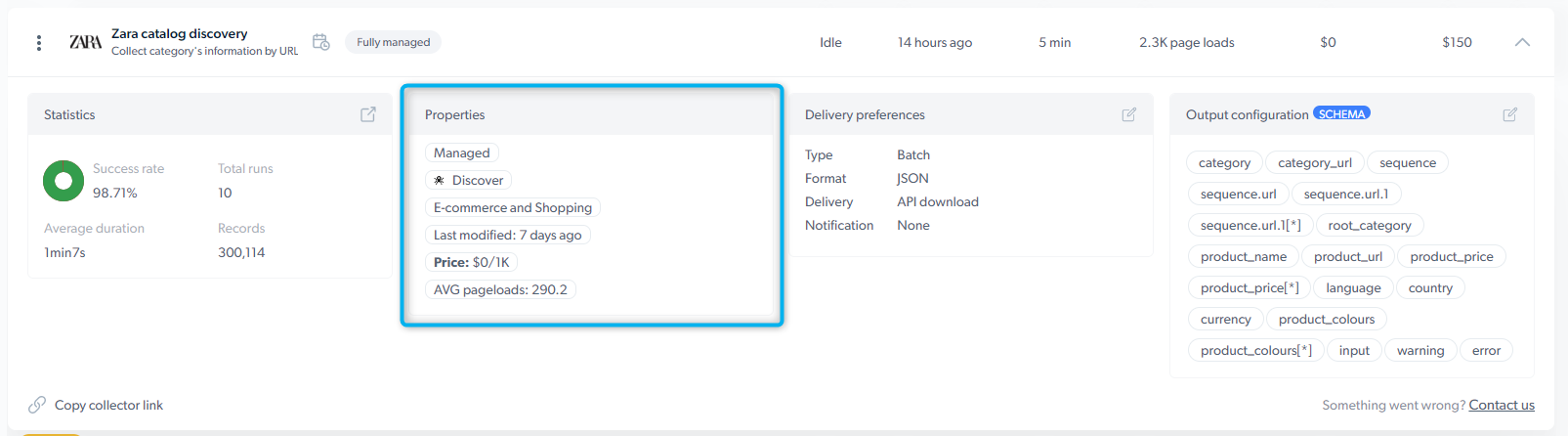
| Property | Values |
|---|---|
| Maintainer | Self-serve (you maintain the scraper) or Full-service (Bright Data maintains it) |
| Type | Search (keyword input), PDP (product page URL input), Discovery (category URL input), or Other |
| Use case | Category tag: Social media, eCommerce, Travel, etc. |
| Last modified | Timestamp of the last code edit or schema change |
| Price per CPM | Cost for 1,000 page loads |
| Avg. page-loads per input | Average number of page loads the scraper uses to process one input |
How do I trigger a scraper and get results?
To trigger a scraper, use the three initiation options documented on Initiate collection and delivery: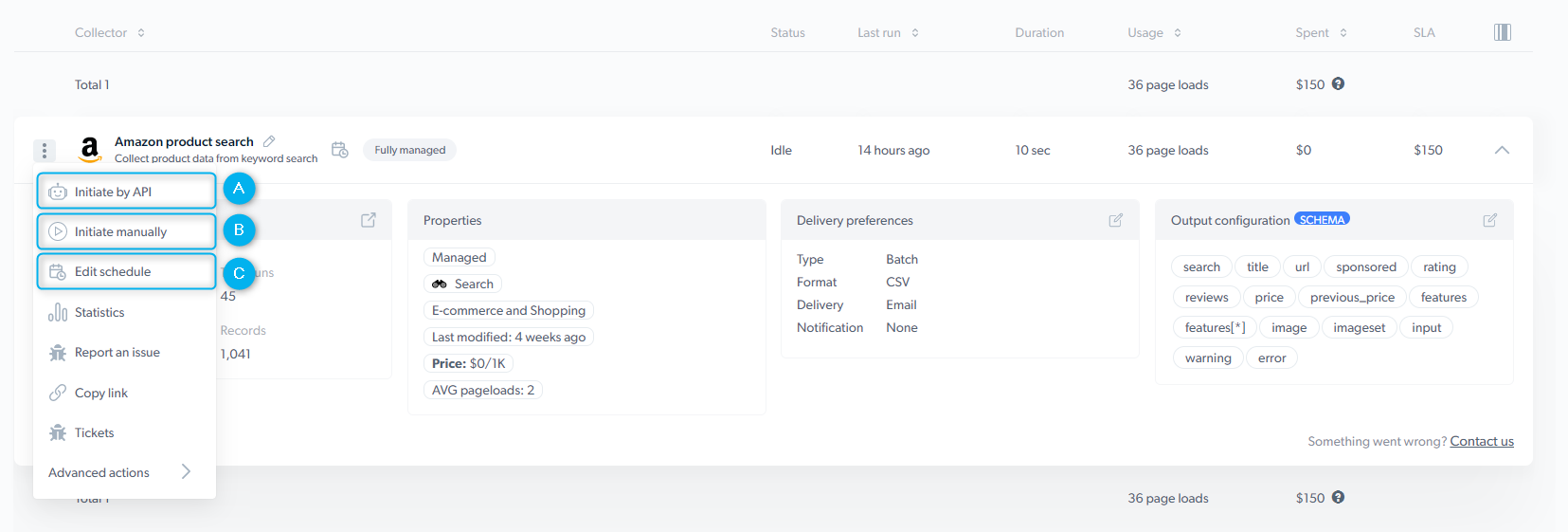
Real-time job inputs and outputs are not stored on Bright Data’s side and cannot be downloaded from the statistics page. Capture them in your own application when the request returns.
What does the collection statistics page show?
The statistics page shows per-job metrics for every run of a scraper.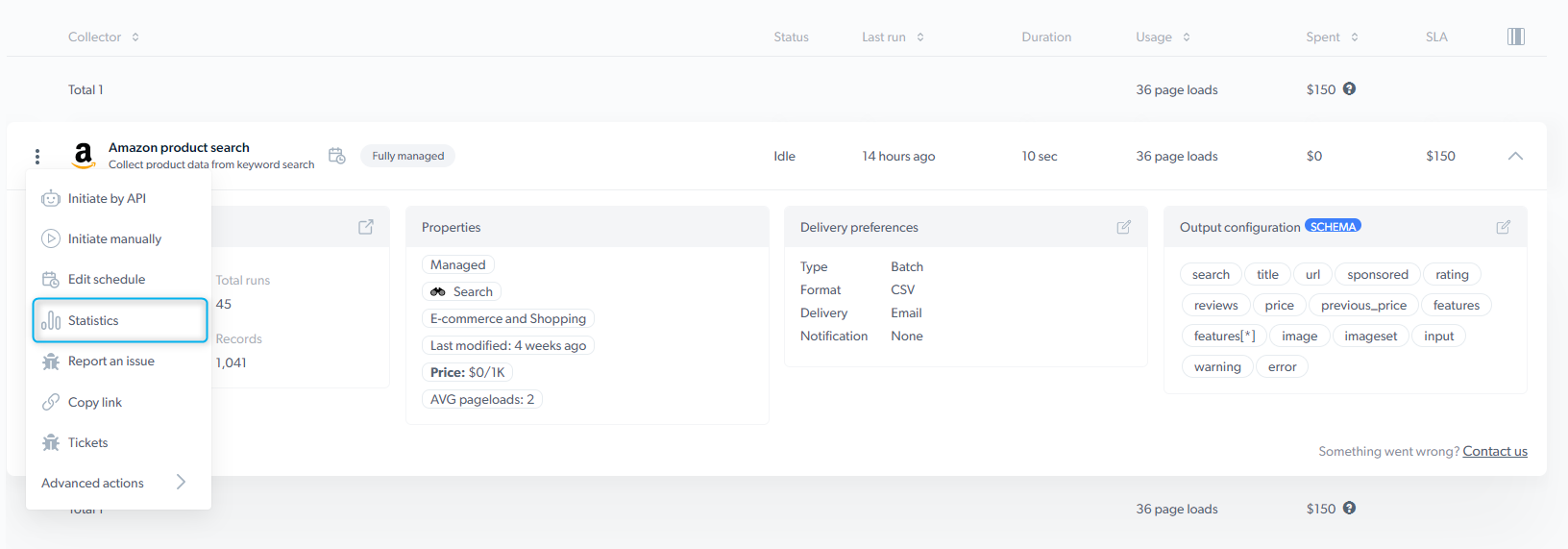
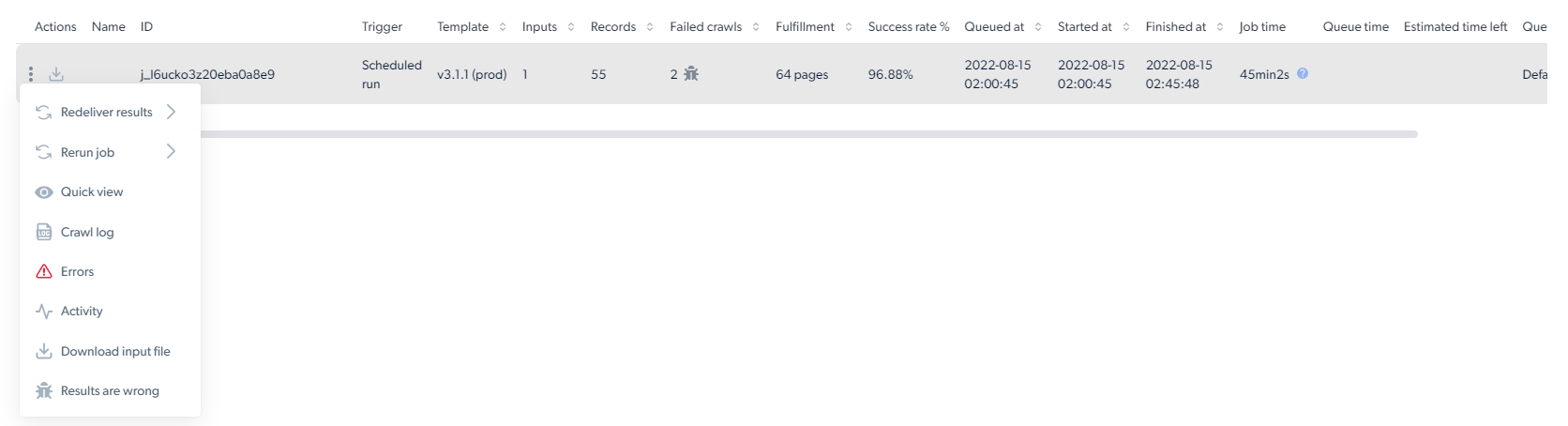

| Column | Description |
|---|---|
| Job ID | Unique identifier for the collection job |
| Trigger | Who triggered the job and how (API, manual, or schedule) |
| Inputs | Number of inputs submitted to the collection |
| Records | Number of records the scraper returned |
| Failed | Number of pages that failed to crawl |
| Success rate | Percentage of inputs that produced successful records |
| Queued at | Timestamp when the job entered the queue |
| Started at | Timestamp when the scraper started collecting |
| Finished at | Timestamp when the scraper finished collecting |
| Job time | Total job duration |
| Estimated time left | Time remaining for an in-progress job |
| Queue | Name of the queue the job is running in (from the trigger’s queue name) |
| Usage | Total page loads consumed by the job |
Related
Initiate collection and delivery
Configure trigger methods, file formats, and delivery destinations
Scraper Studio IDE interface
Reference for every panel and control in the IDE