

Bright Data Scraper Studio’s AI Agent builds a custom web scraper from a natural-language description. Give it a target URL and describe the data you want; the agent generates an output schema, writes the scraper code, and hands you a runnable scraper you can trigger by API, manually, or on a schedule. This tutorial walks through the full flow. Time to complete: about 10 minutesDocumentation Index
Fetch the complete documentation index at: https://docs.brightdata.com/llms.txt
Use this file to discover all available pages before exploring further.
Prerequisites
- A Bright Data account (sign up free)
- The URL of the website you want to scrape
Build your first scraper with the AI Agent
Open Scraper Studio
In the Bright Data control panel, click Scrapers in the left menu and open Scraper Studio.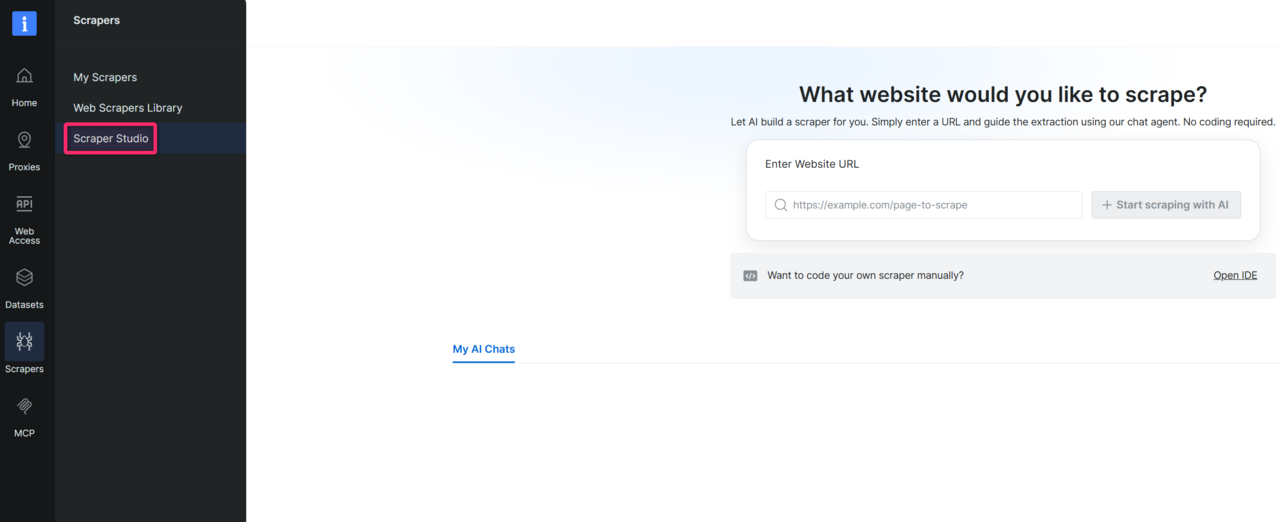
Enter the target website URL
Paste the URL of the page you want to scrape into the chat input. Along with the URL, add any context that helps the AI build a more accurate scraper on the first try. The more context you provide, the better the generated code.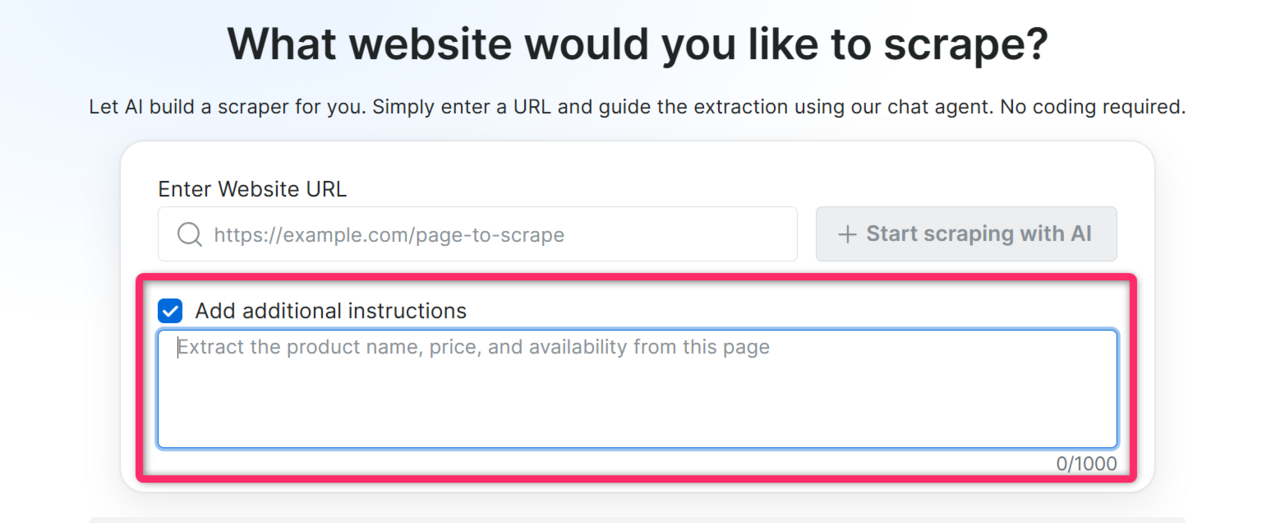
- Specific fields you need: “I need price, title, and stock status”
- Where the data lives on the page: “prices are in the product detail panel, not the listing page”
- Actions required to reach the data: “click ‘Show more’ to load full descriptions”
- CSS selectors, if you know them:
.product-price span.amount - Page load behavior, if the site is slow or lazy-loads content: “results load dynamically, give it extra time”
Expected result: the AI Agent acknowledges the URL and may ask one or two clarifying questions about the data you want.
Answer the AI's questions
Respond in plain language.
Expected result: the AI Agent generates a schema, a structured list of fields with data types that will become your scraper’s output.
Review and approve the schema
Read through the generated schema. You have four options: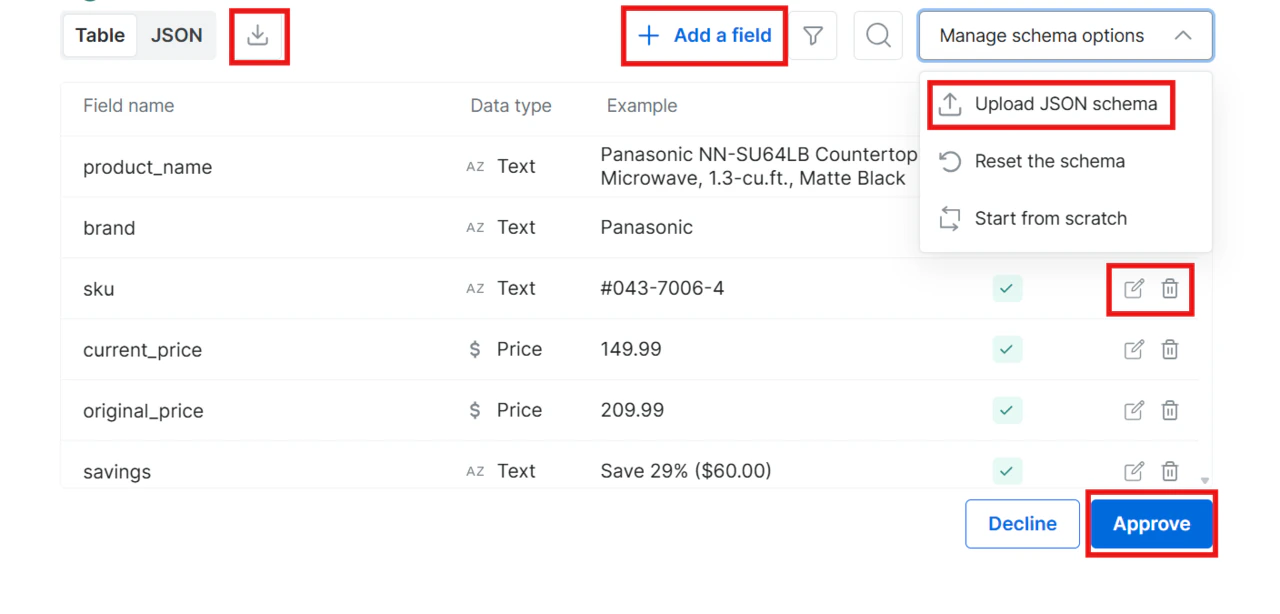
- Approve: click Approve to accept the schema as-is
- Decline: type feedback in the chat (for example, “Remove the image field and add a rating field”) and the AI regenerates the schema
- Edit inline: modify the schema directly without going back to the chat
- Upload your own schema: bring your own schema file; download the example file to see the correct format
- Edit a field (pencil icon): change a field’s name or data type
- Delete a field (trash icon): remove fields you do not need
- Add a field (plus button): add new fields to the schema
- Start from scratch: clears every field so you can build the schema manually from an empty state
- Reset the schema: discards inline changes and returns to the original AI-generated schema
Expected result: once approved, the AI Agent starts generating the scraper code.
Wait for code generation
The AI writes the full scraper, including extraction logic, navigation handling, data validation, and error handling. This takes a few minutes.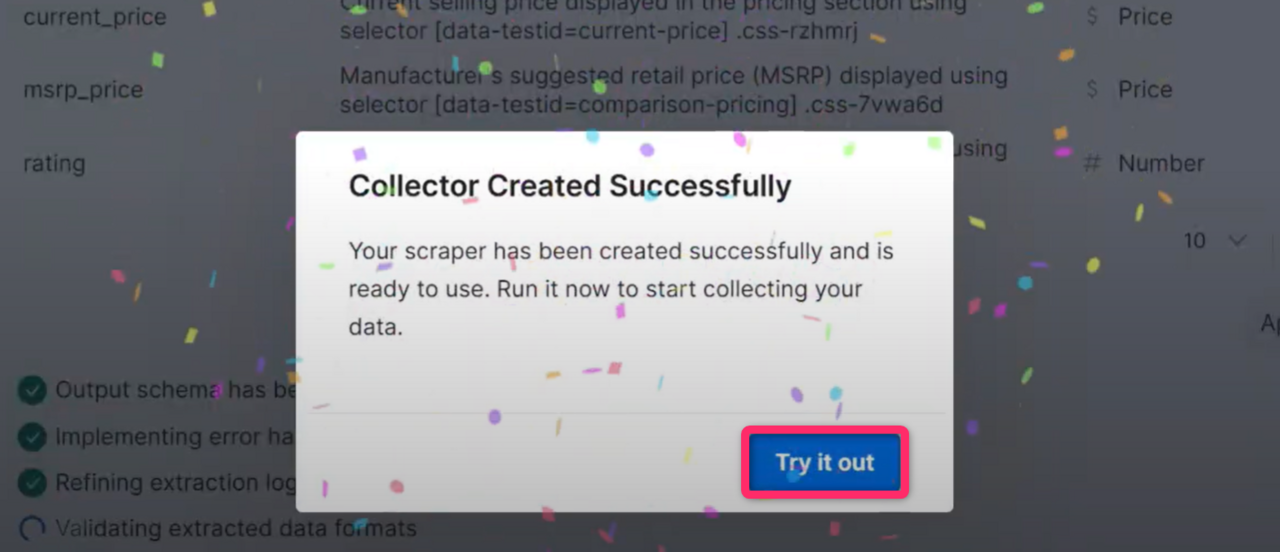
Expected result: a confirmation popup appears indicating your scraper is ready.
Run your scraper
Click Try it out to open the Initiate Manually page. Review the collection settings and click Start to begin data collection.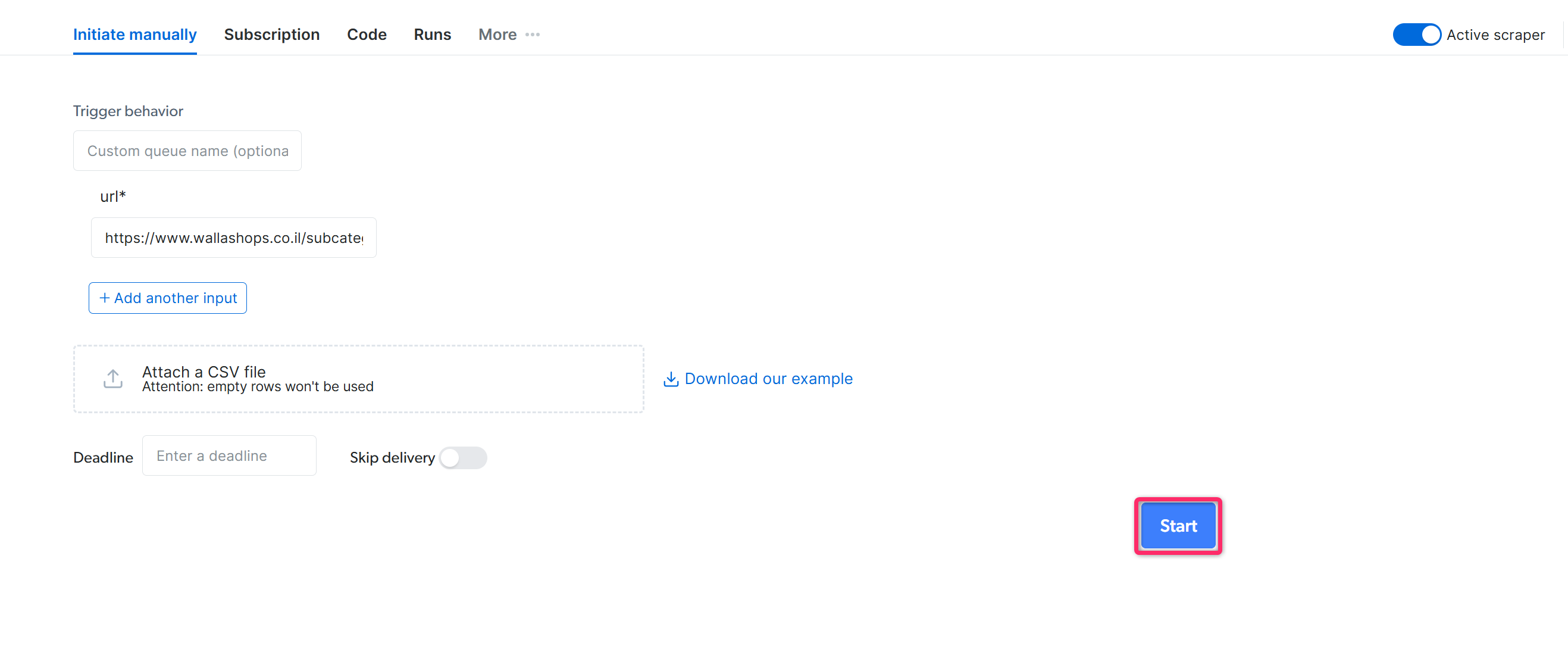
- Initiate by API: trigger the scraper programmatically without opening the control panel
- Schedule: run the scraper on a daily, weekly, or custom interval
Expected result: the scraper collects data. Monitor progress from the Runs dashboard and download results in JSON, NDJSON, CSV, or XLSX once the job completes.
What can the AI Agent build?
Reach for the Bright Data Scraper Studio AI Agent when the data you need isn’t already in the Datasets Marketplace. For sites Bright Data already covers (Amazon, Walmart, LinkedIn, eBay), the marketplace ships pre-built scrapers that are faster and cheaper than building your own. The AI Agent shines on regional ecommerce, B2B catalogs, niche verticals and any site where no marketplace scraper exists. The AI Agent builds one of four scraper types. Pick the one that matches what you have and what you need.| Scraper type | What you provide | What you get | Page visits per input |
|---|---|---|---|
| PDP | List of product URLs | Full per-product detail | 1 |
| Discovery | Category / listing URL | Listing-level rows (title, price, rank) | 1 |
| Discovery + PDP | Category / listing URL | Full per-product detail for every item | 1 + N |
| Search | Keyword (+ optional country) | Either Discovery or Discovery + PDP shape | 1 + M |
When do I use a PDP scraper?
Use a PDP scraper when you have a list of specific product URLs and need full per-product detail. Each input URL produces one row. Example: 100 product URLs from a regional retailer like dm.de → 100 rows with title, price, availability, images and any other field you defined in the schema.When do I use a Discovery scraper?
Use a Discovery scraper when you need an overview of items on a single listing page and can live without per-product detail. Each input URL produces N rows where N equals the number of items in the listing. Example: A category page likehttps://www.dm.de/baby-kind → 30 rows with title, price, rating and listing position. No description, no full image gallery.
When do I use a Discovery + PDP scraper?
Use a Discovery + PDP scraper when you need full per-product detail for an entire category. Each input URL produces N rows with the full PDP shape. This is the most expensive type. One category URL with 200 products costs roughly 200 times a single PDP scrape. Example: A category page on a regional retailer like decathlon.fr → full per-product detail for every item in that category.When do I use a Search scraper?
Use a Search scraper when you do not have specific URLs. Provide a keyword and optionally a country; the AI Agent picks Discovery or Discovery + PDP shape based on whether you asked for listing-level fields or full PDP detail. Example: keyword “brake pads” on a B2B parts site like autodoc.de → matching product results in either listing-level or full PDP shape.Frequently asked questions
Can I edit the code after the AI Agent builds the scraper?
Can I edit the code after the AI Agent builds the scraper?
Yes. Every scraper the AI Agent generates can be opened in the Bright Data Scraper Studio IDE and edited directly. If you prefer not to write code, use the Self-Healing tool to request changes in plain language.
Does the AI Agent build scrapers for login-protected sites?
Does the AI Agent build scrapers for login-protected sites?
The AI Agent generates scrapers that run on Bright Data’s proxy and unblocking infrastructure, which handles most anti-bot defenses. For sites that require a logged-in session, build the scraper in the IDE and use
set_session_cookie() or the authentication pattern that matches the target site.Why didn't the AI generate what I expected?
Why didn't the AI generate what I expected?
The AI Agent relies on the context you give it. If the output is off, decline the schema and add more specifics about field names, selectors, or the exact page section where the data lives. You can also use the Self-Healing tool to refine a generated scraper after the fact.
Related
Build with the Bright Data CLI
Build the same scraper from the terminal or any coding agent
Develop a scraper with the IDE
Build a scraper by writing JavaScript directly
Self-Healing tool
Update a generated scraper with plain-language prompts