

Narrow down Bright Data Marketplace datasets (250+ domains) to the exact records and fields you need using the UI or API by creating filtered subsets and selecting the fields to include. What you can do:Documentation Index
Fetch the complete documentation index at: https://docs.brightdata.com/llms.txt
Use this file to discover all available pages before exploring further.
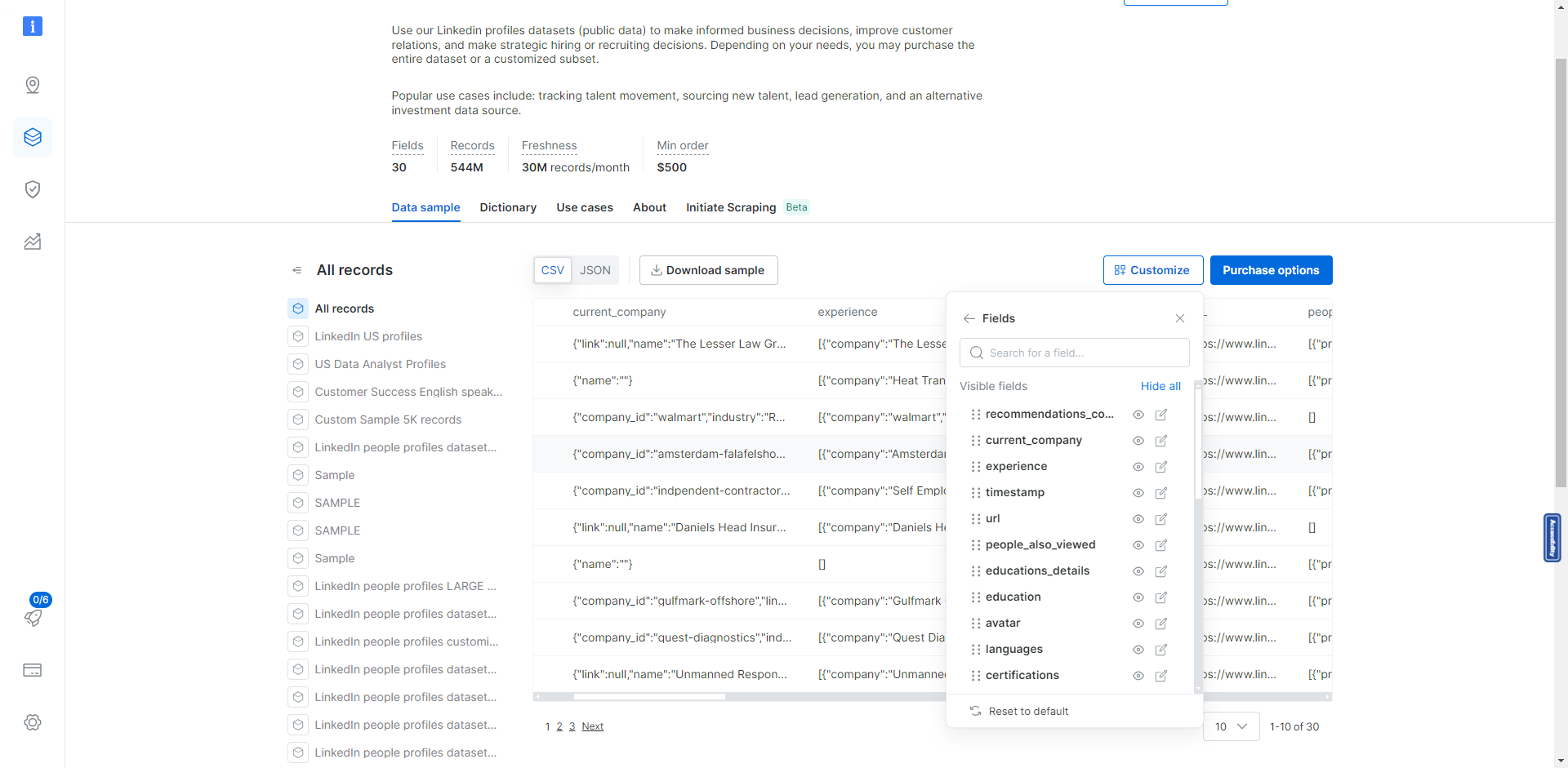
- Customize fields: choose which columns (fields) to include in your dataset view or export.
- Filter a dataset: create a saved subset using filter rules.
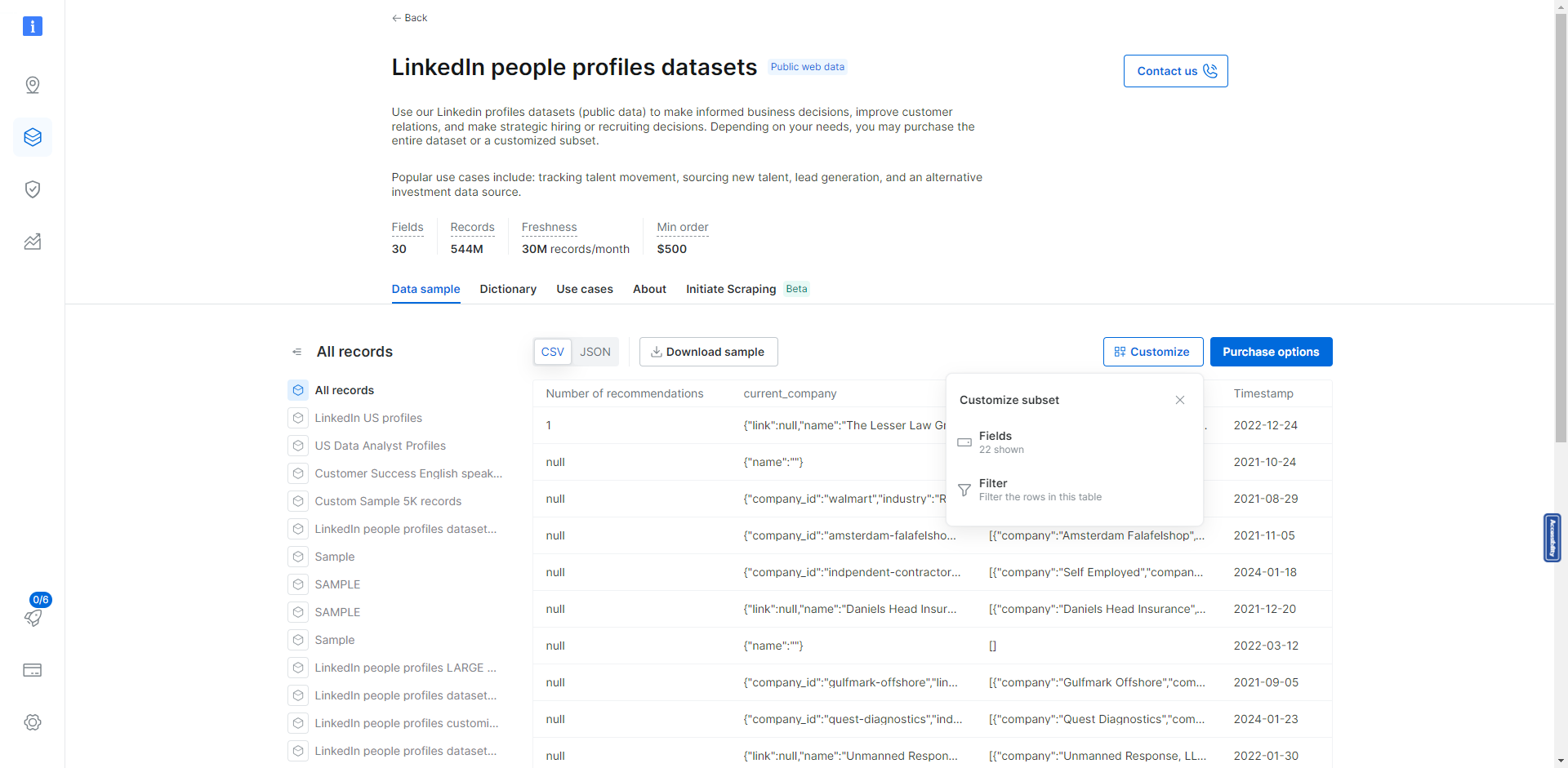
How to customize fields
Choose which fields (columns) appear in your Bright Data Marketplace dataset view and exports.- Navigate to the dataset you want to work with.
- Open the Fields selector.
- Select the fields you want to include in the view.
- Click Apply, and save the view if prompted.
How to filter a dataset
Create a saved subset of a Bright Data Marketplace dataset by applying filter rules in the UI or through the API.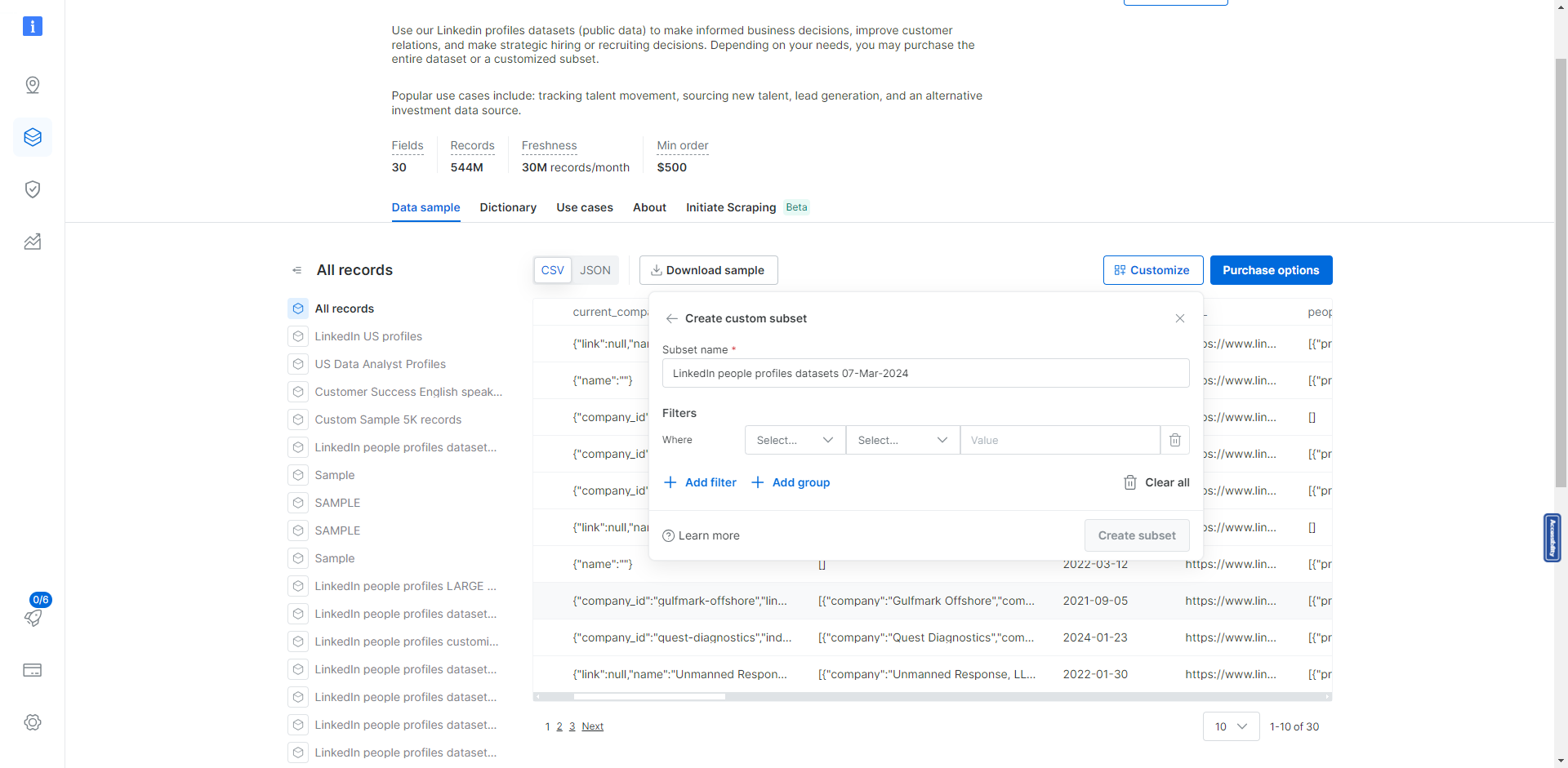
Filter a dataset using the UI
- Navigate to the dataset you want to filter.
- Click the Filter icon (top right).
- Enter a name so you can find this subset later.
- Under Include filters, add one or more filters (for example: country, job title, date).
- Click Create subset.
Filter operators reference
Select
Match one or more exact values from a predefined list (for example: countries or regions).Boolean (true/false)
Filter fields that can only be true or false (for example: a field likeverified).
Date
Filter records within a specific date range (start date and end date).Number (operators)
- Is: match an exact numeric value.
- Not: exclude a numeric value.
- Exists: include only records where the field is not empty.
- List (exact match): match any value in a provided list.
- Lower than / Lower or equal to: match values below (or up to) a threshold.
- Greater than / Greater or equal to: match values above (or at) a threshold.
String
Filter text fields using the match types available in the UI (for example: exact match or contains).Array
Use Array includes to match records where a multi-value (array) field contains a specific value (for example: categories, attributes or labels).Group filters (rule-based filters)
- Click + Add filter.
- Select Add group.
- Define your group rules (for example: category is “Electronics” and brand is “Dell” or “Apple”).
Limitations
- Groups can’t be nested.
- A maximum of two groups per filter is allowed.
- A maximum of four inputs per filter group is allowed.
- To filter by more values, use a CSV list upload option (if available) or contact your account manager.
- For more complex queries, contact your account manager.
Troubleshooting
- I can’t see the Filter icon. Make sure you’re viewing the dataset table and that your account has permission to create subsets.
- My subset returns no results. Remove filters one by one to identify the restrictive condition, then reapply the correct values and operators.